
Installing & Setting Up the Medpaid Plugin for WooCommerce
A step-by-step guide to installing the Medpaid plugin, creating your account, connecting your store, enabling the payment gateway, submitting products for medical review, choosing how HSA/FSA appears in your store, and going live with HSA/FSA at checkout.
01What the Medpaid WooCommerce integration does
The Medpaid plugin adds a native Pay with HSA/FSA option to your WooCommerce checkout. The option is offered when the cart contains at least one product that has passed Medpaid's medical review. It works with both the classic shortcode checkout and the modern Cart & Checkout Blocks, and is compatible with WooCommerce High-Performance Order Storage (HPOS).
When a customer chooses Pay with HSA/FSA and places the order, they are redirected to the Medpaid hosted portal to complete a brief health assessment (1–2 minutes). If the assessment is approved by a licensed practitioner, the customer pays with their HSA/FSA card on Medpaid's secure page and returns to your store's Order Received page. The plugin then confirms the payment with Medpaid server-to-server before it marks the order paid, and the customer receives a Letter of Medical Necessity (LMN).
Good to know
Customers enter their card details on Medpaid's hosted page — card data never touches your server, so the gateway does not add PCI scope to your store. Your existing payment processor, shipping, and customer emails keep working as they do today.
What this guide covers
The full plugin setup: installing Medpaid, creating your Medpaid account, connecting your API keys, enabling the payment gateway, submitting products for review, adjusting the storefront display, going live, and refunding an order. You'll need administrator access to your WordPress store and an active WooCommerce installation.
02Before you begin
Confirm the following before installing. The integration runs inside WooCommerce, so a working WooCommerce store is required.
| Requirement | Needed |
|---|---|
| WordPress | Version 6.9 or higher |
| WooCommerce | Version 8.3 or higher, installed and active (declared as a required plugin) |
| PHP | Version 8.3 or higher |
| HTTPS / SSL | Required on checkout pages (Medpaid requires it for HSA/FSA processing) |
| Medpaid account | A Medpaid merchant account (created during setup — Section 4) |
| Admin access | Ability to install and activate plugins in WordPress |
Requirements shown are for Medpaid plugin v1.1.0, which is tested with WordPress up to 7.1 and WooCommerce up to 11.0.
03Install the Medpaid plugin
- Confirm WooCommerce is active
Medpaid declares WooCommerce as a required dependency and will not run without it. Make sure WooCommerce is installed and active first.
- Get the plugin
Medpaid supplies the plugin as a .zip file. If you have not received it, contact support@medpaid.com.
- Upload and activate
In your WordPress Admin, go to Plugins → Add Plugin (labelled Add New Plugin on older WordPress versions), select Upload Plugin, choose the file, and select Install Now. Then select Activate Plugin.
- Open the Medpaid menu
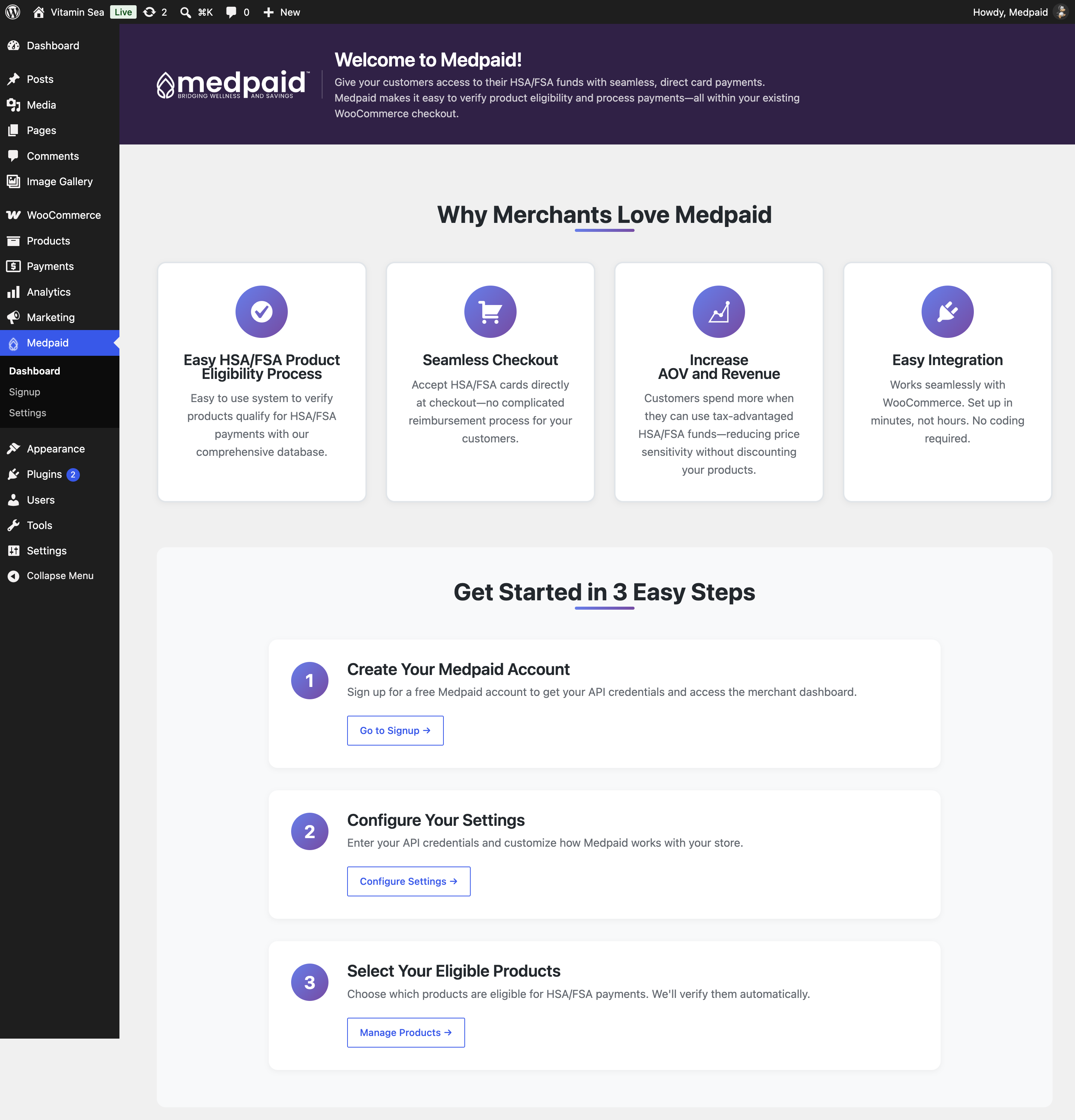
A Medpaid menu appears in your WordPress Admin sidebar, below Marketing. Opening it shows the Welcome screen with the three setup steps this guide follows.
After activation
Until your store is connected, the Medpaid menu holds three items: Dashboard (the Welcome screen), Signup, and Settings. Once valid API keys are saved (Section 5), the menu changes to Dashboard, Products, Sync, Sync Status, Display Settings, and Refunds.
04Create your Medpaid account
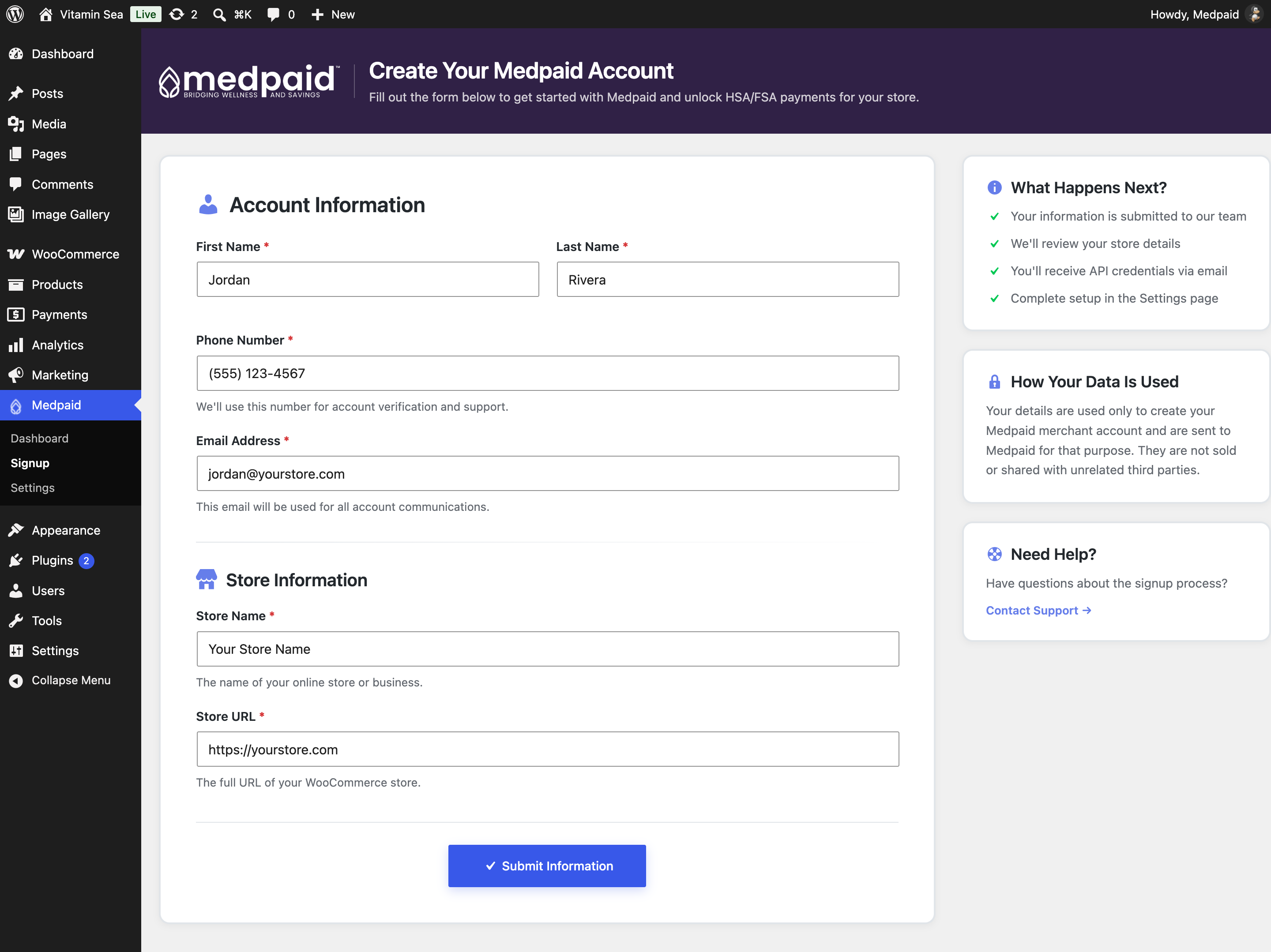
From the Welcome screen select Go to Signup (or Create Your Account) to open Medpaid → Signup. Complete the Create Your Medpaid Account form.
Account information
- First Name and Last Name
- Phone Number — used for account verification and support
- Email Address — used for all account communications
Store information
- Store Name — the name of your store or business
- Store URL — the full URL of your WooCommerce store
Select Submit Information. Your details are sent to the Medpaid team, who review your store and email your API credentials — an External Key and an Onboarding Key. You'll enter those in the next step.
Already have an account?
If you already have a Medpaid merchant account and API keys, you can skip this step and go straight to Section 5 to enter your keys.
05Connect your store: enter your API keys
Connect the plugin to Medpaid with the two keys issued to you. Where you enter them depends on whether you're setting up for the first time or managing an already-connected store.
During first-time setup
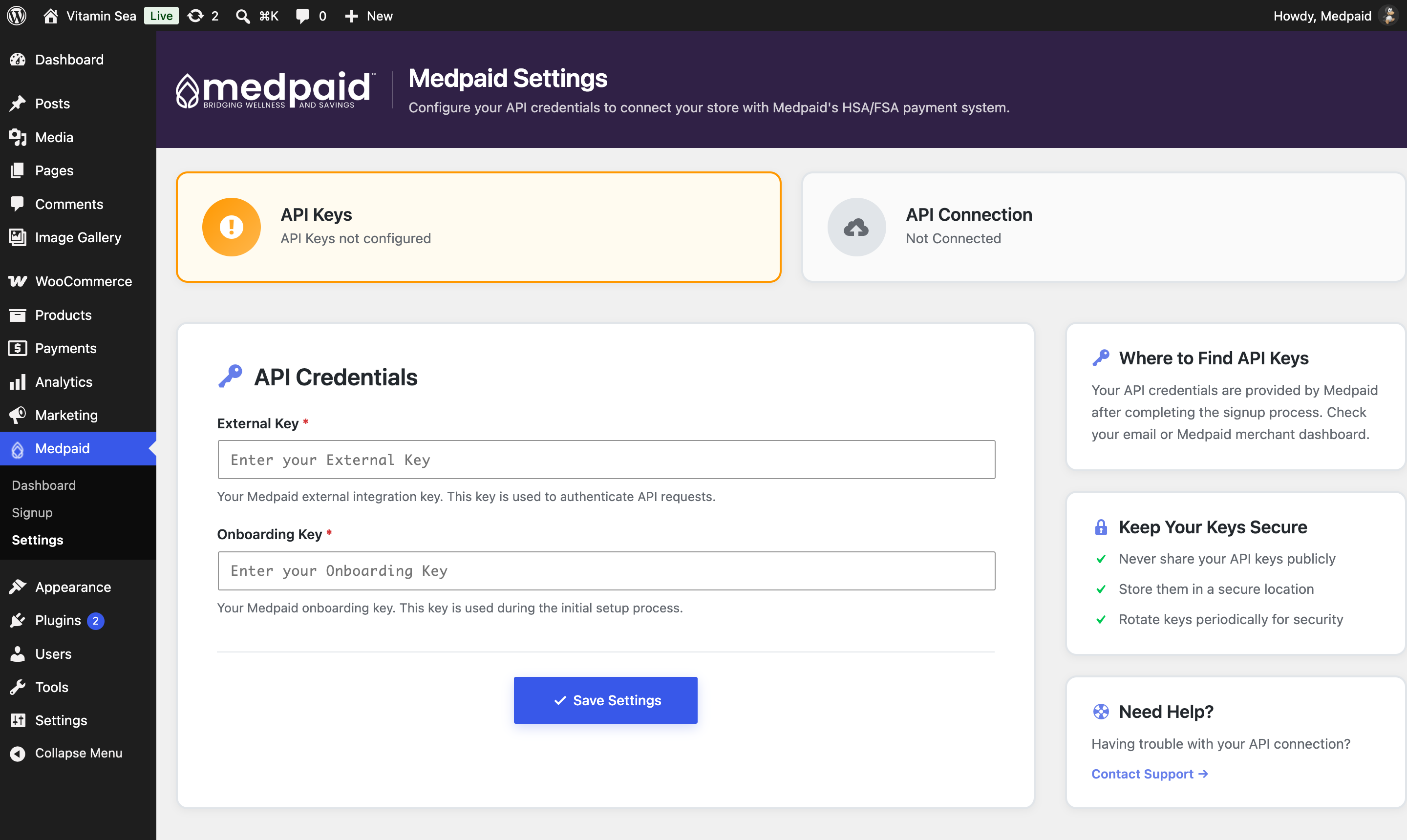
Go to Medpaid → Settings (or select Configure Settings on the Welcome screen). The Medpaid Settings page shows two status cards — API Keys and API Connection — which read "API Keys not configured" and "Not Connected" until valid keys are saved. Under API Credentials, enter both keys exactly as provided and select Save Settings.
- External Key — your Medpaid external integration key, used to authenticate API requests
- Onboarding Key — your Medpaid onboarding key, used during initial setup
After your store is connected
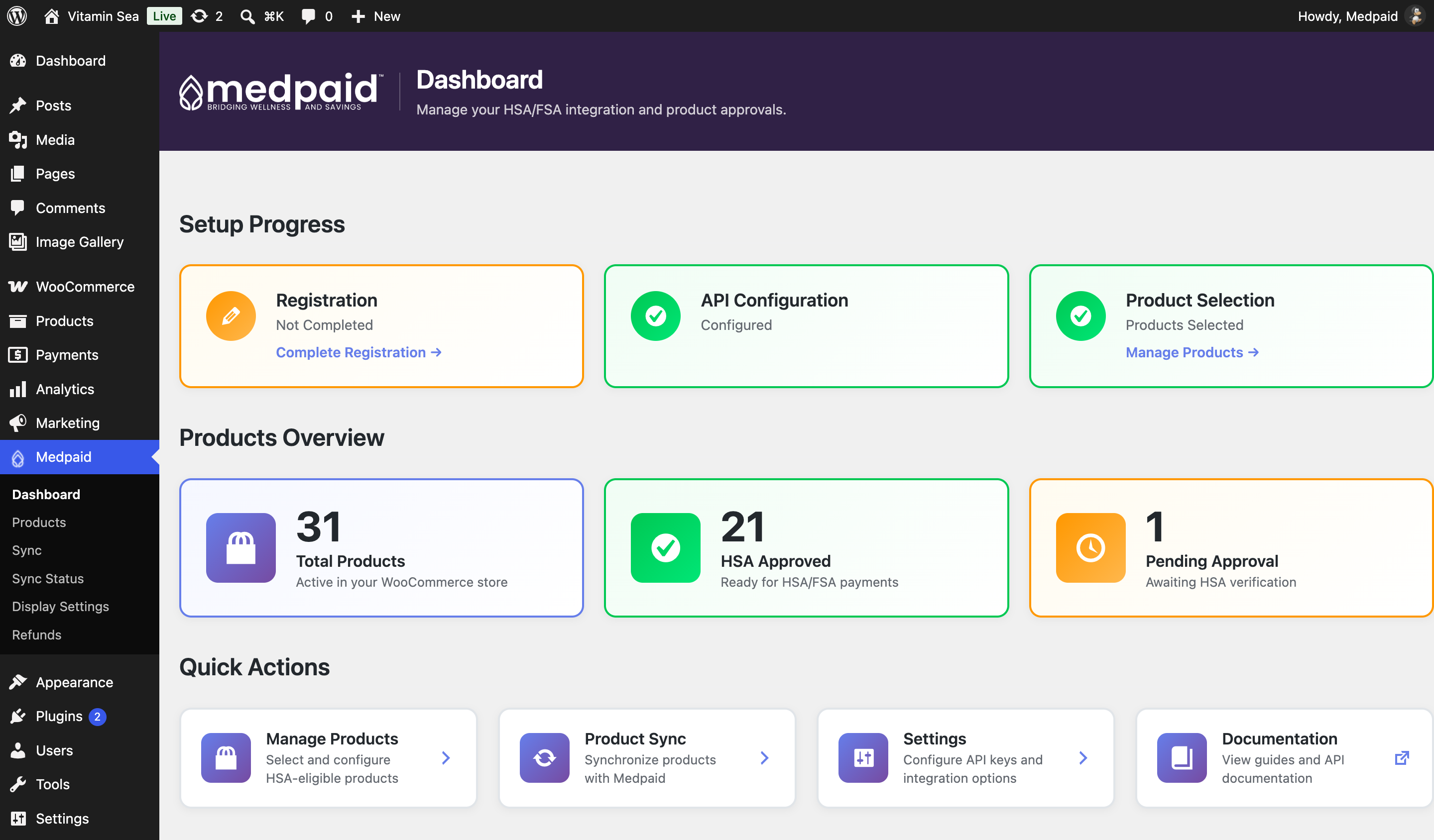
When Medpaid accepts the keys, the Medpaid menu switches to its connected layout and Medpaid → Dashboard replaces the Welcome screen. The Dashboard tracks Setup Progress (Registration, API Configuration, Product Selection), summarizes your catalog under Products Overview, and gives Quick Actions for Manage Products, Product Sync, and Settings.
Managing your keys later
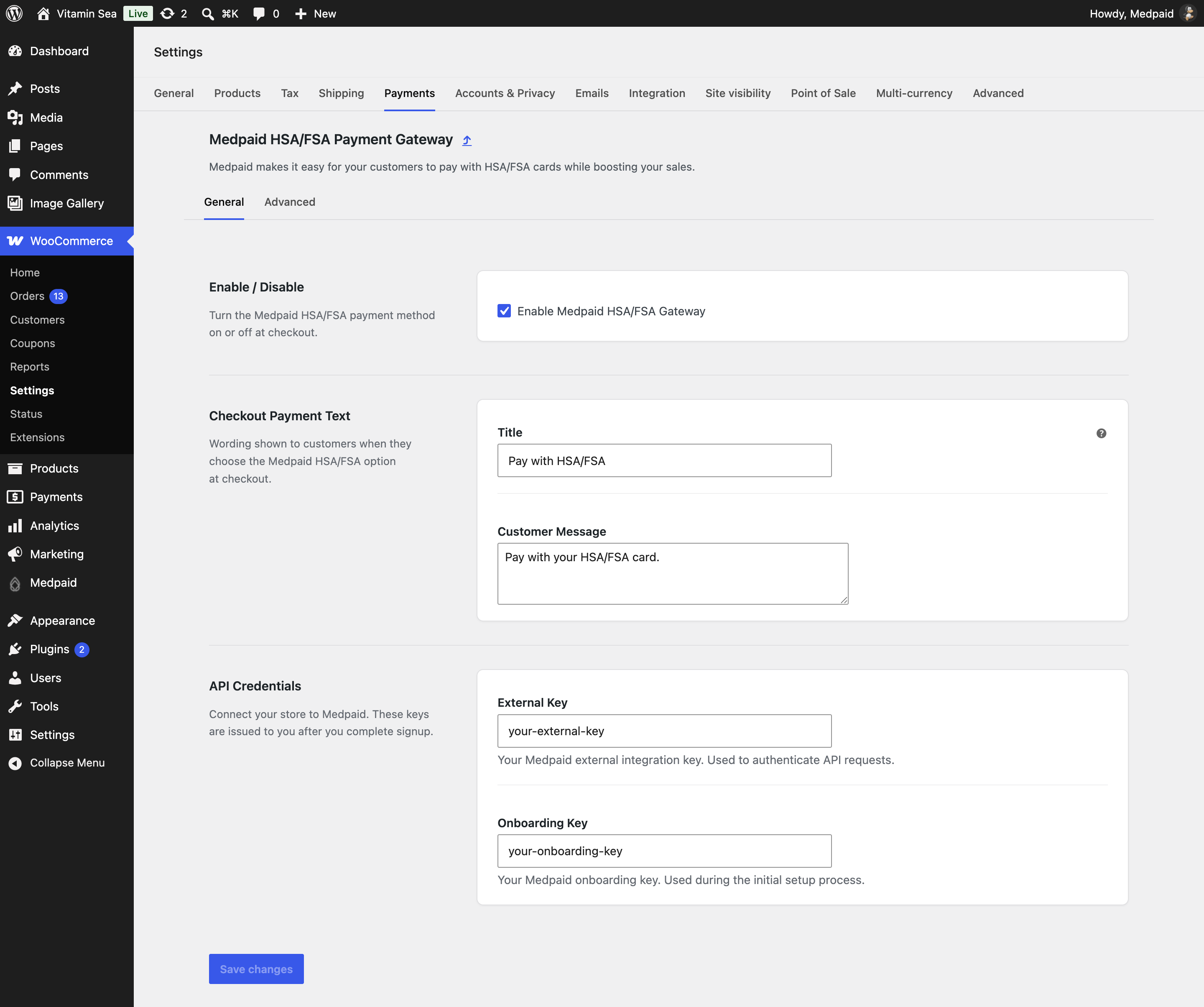
Once your store is connected, the Signup and Settings pages are removed from the Medpaid menu and your keys live in the standard gateway settings. Reach them at WooCommerce → Settings → Payments → Medpaid HSA/FSA Payment Gateway → Manage, or through the Settings quick action on the Medpaid dashboard. The General tab holds the Enable / Disable switch (Section 6), the Checkout Payment Text (defaults: "Pay with HSA/FSA" and "Pay with your HSA/FSA card."), and your API Credentials. Select Save changes after any edits.
The Advanced tab holds developer and troubleshooting options. Leave Enable Advanced Features off on a production store unless Medpaid Support asks you to turn it on — while it is off, the store always uses the Live API with developer mode and logging disabled.
Where to find your keys
Medpaid issues your External Key and Onboarding Key after you complete signup — check the email from Medpaid or your Medpaid merchant dashboard. Keep both keys secure and never share them publicly.
06Enable the HSA/FSA payment gateway
Saving your keys does not switch the payment method on by itself — make sure the gateway is enabled.
- Open WooCommerce payments
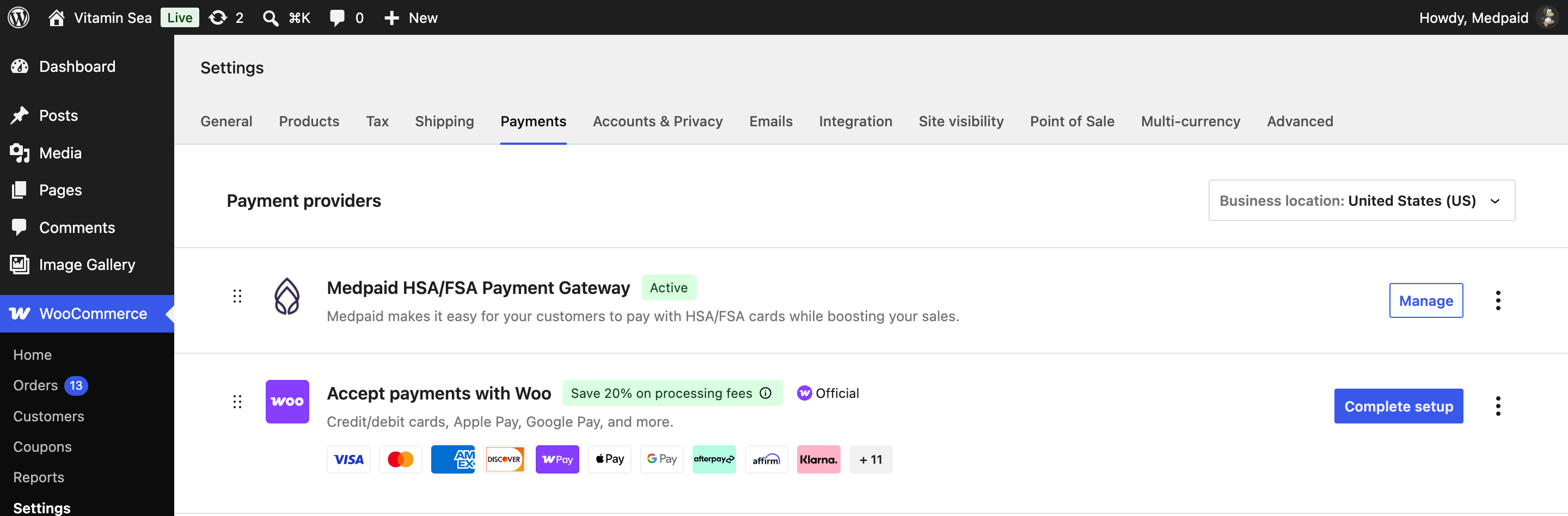
Go to WooCommerce → Settings → Payments.
- Enable the Medpaid gateway
Find Medpaid HSA/FSA Payment Gateway and enable it — or tick Enable Medpaid HSA/FSA Gateway on the gateway's Manage screen (Section 5) and select Save changes.
- Confirm it's active
The gateway shows as Active in the Payment providers list.
Don't skip this
Until the gateway shows Active, customers will not see the Pay with HSA/FSA option at checkout.
07Select and submit your products
Choose which products to submit for medical review. From the Medpaid dashboard this is the Manage Products quick action; you can also reach it directly in your WordPress Admin.
- Open the product list
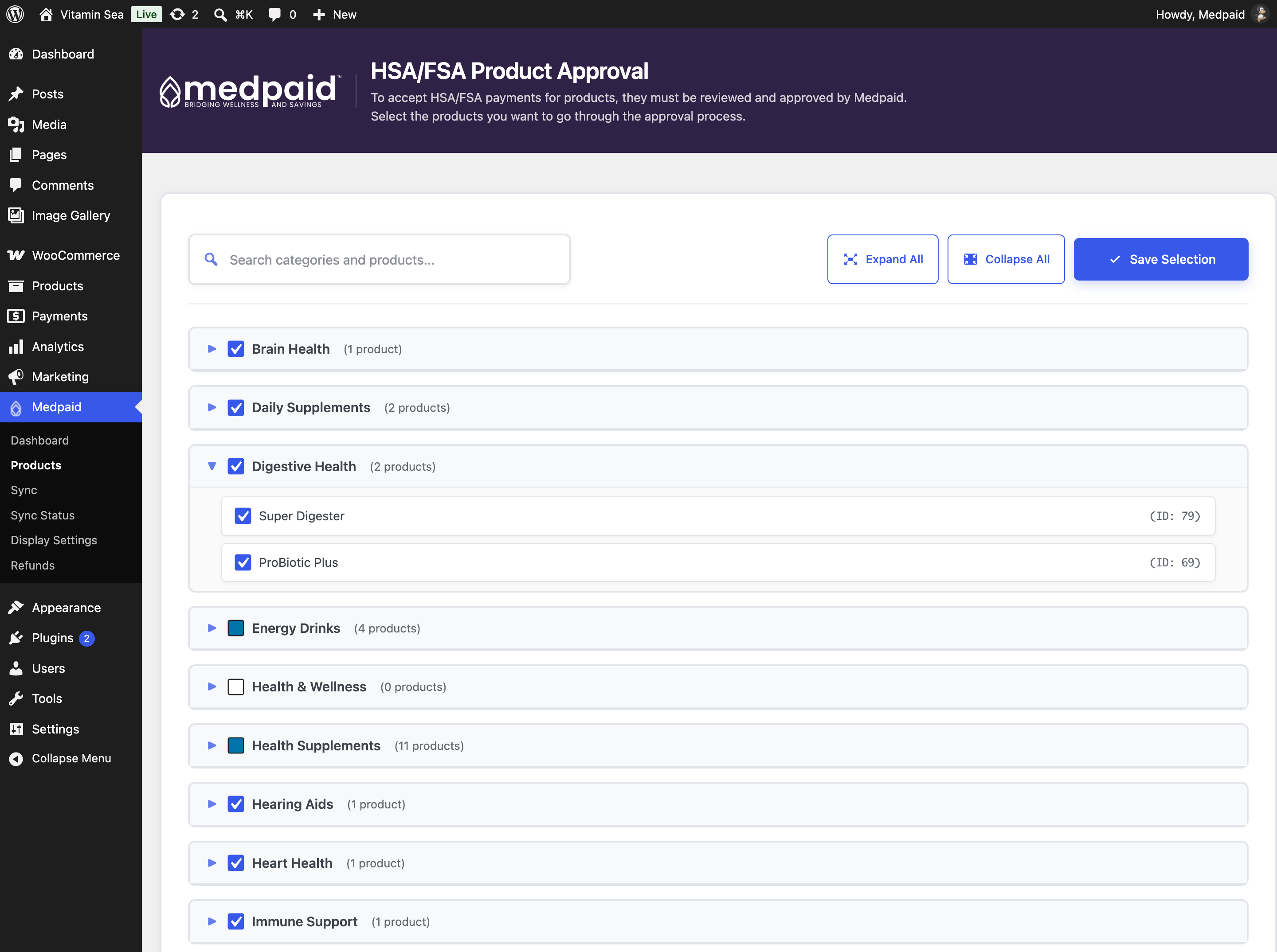
Go to Medpaid → Products. The page lists every product in your store, grouped by category.
- Select what to submit
Ticking a category selects every product in it. To choose individual products, click the arrow to the left of a category name to expand it — a filled box on a category means only some of its products are selected. Expand All, Collapse All, and the search box help with larger catalogs.
- Save your selection
Select Save Selection in the upper-right corner to finish.
On the wording
The plugin titles this page "HSA/FSA Product Approval" and labels reviewed products "Approved". In Medpaid terms you are submitting products for eligibility review by a licensed practitioner — Medpaid verifies eligibility against IRS Publication 502; it does not certify or guarantee any product's HSA/FSA status.
08Sync and medical review
Selecting products stages them; syncing sends them to Medpaid and brings review results back.
- Run a sync
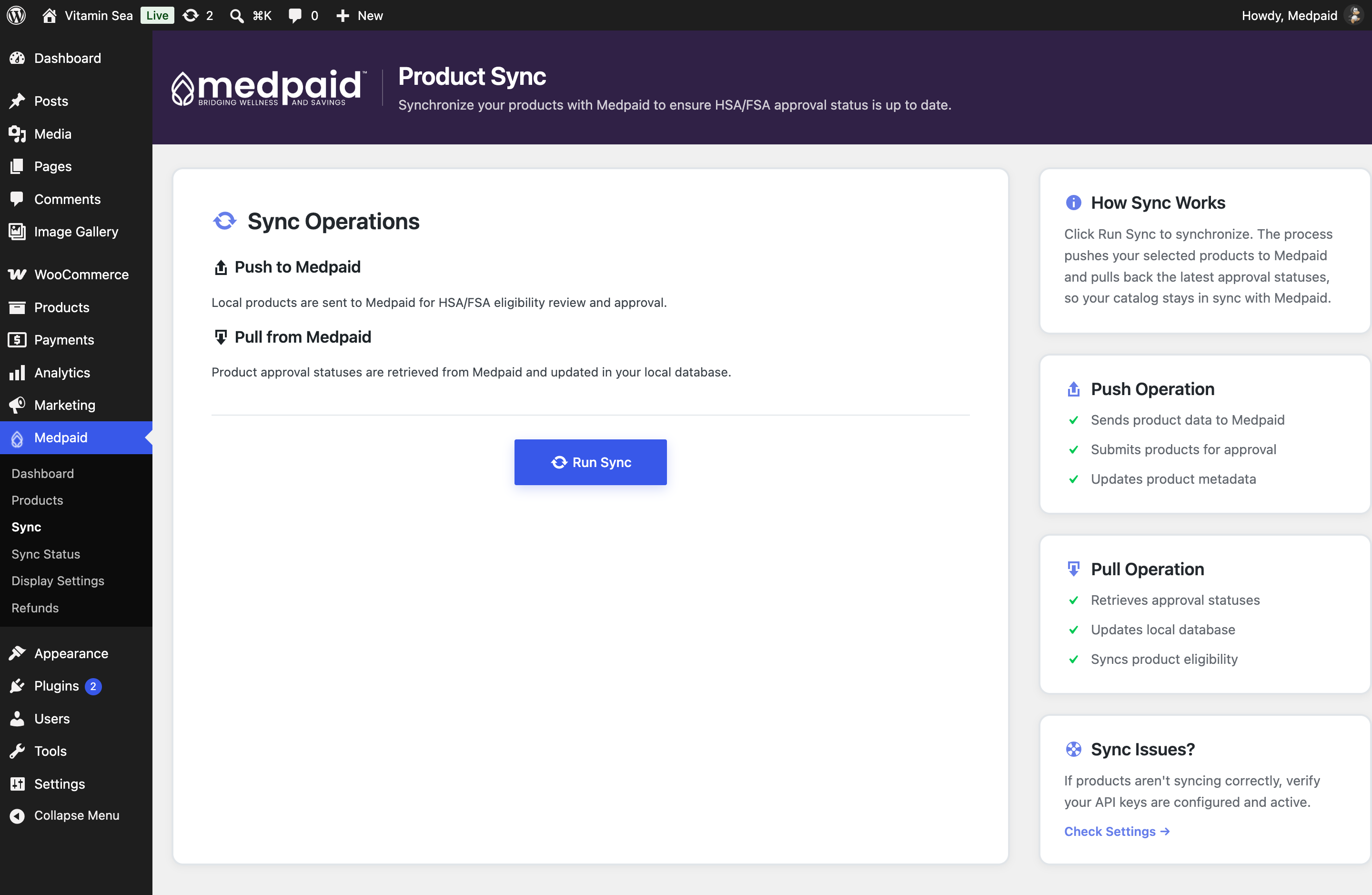
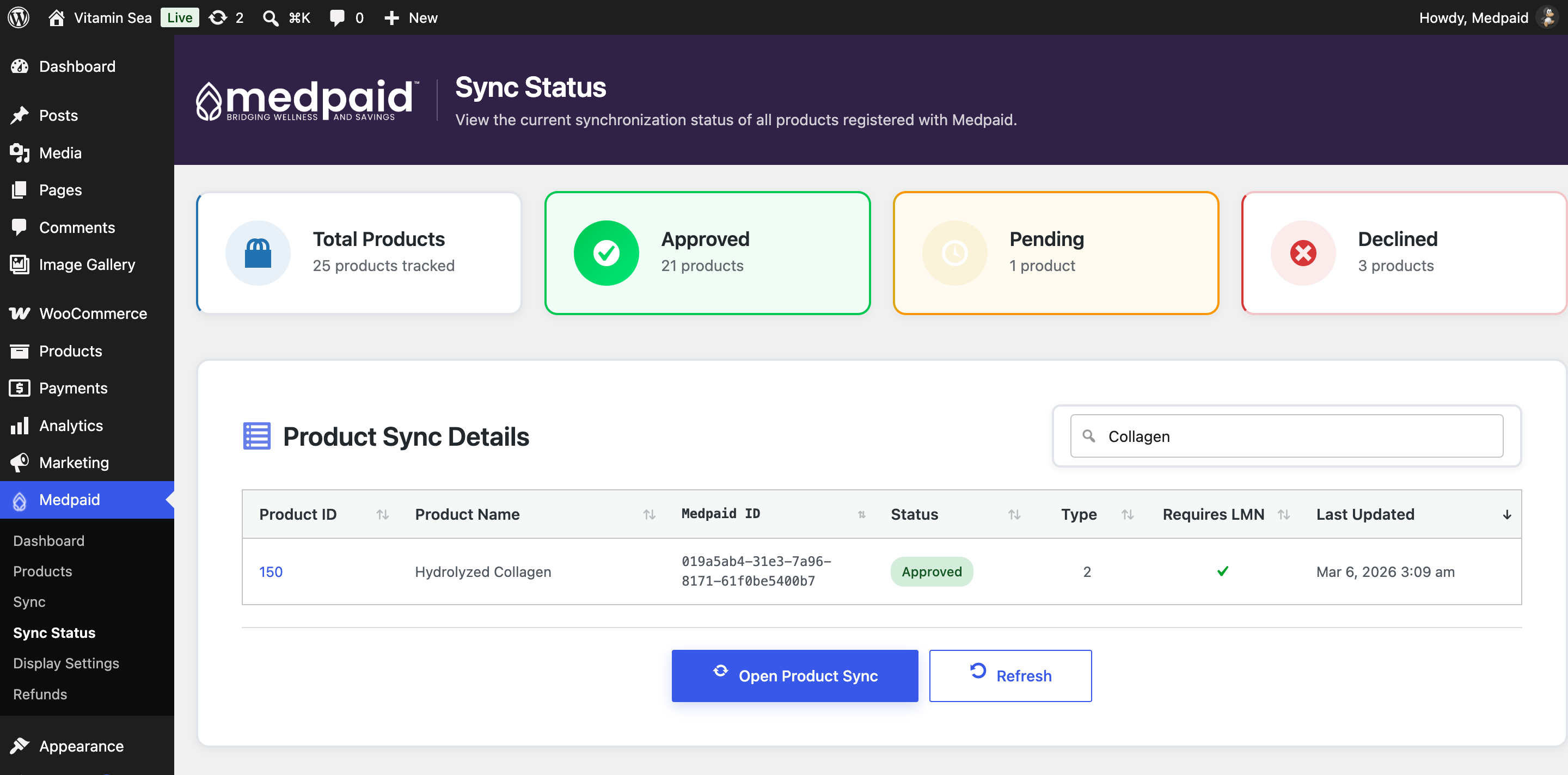
Go to Medpaid → Sync and select Run Sync. The plugin pushes your selected products to Medpaid for eligibility review, then pulls back the latest status of each product. When it finishes, the page reports how many products were pushed and updated.
- Check each product's status
Go to Medpaid → Sync Status. Summary cards show how many products are tracked and how many are Approved, Pending, or Declined in the plugin's labels. The table below lists every product registered with Medpaid, whether it requires an LMN, and when it was last updated. Search by name or sort by any column.
- Keep the catalog current
Run a sync whenever you add or change the products you want reviewed. The plugin also pulls status updates from Medpaid automatically once a day.
Review itself needs nothing further from you: licensed practitioners review each product against IRS Publication 502 and clinical literature. Products that pass review can be paid for with HSA/FSA funds at your checkout.
Timing
Review typically takes a few business days to about two weeks depending on catalog size; most catalogs under 20 products are reviewed within about 5 business days. Medpaid emails you when review is complete.
09Choose how HSA/FSA appears in your store
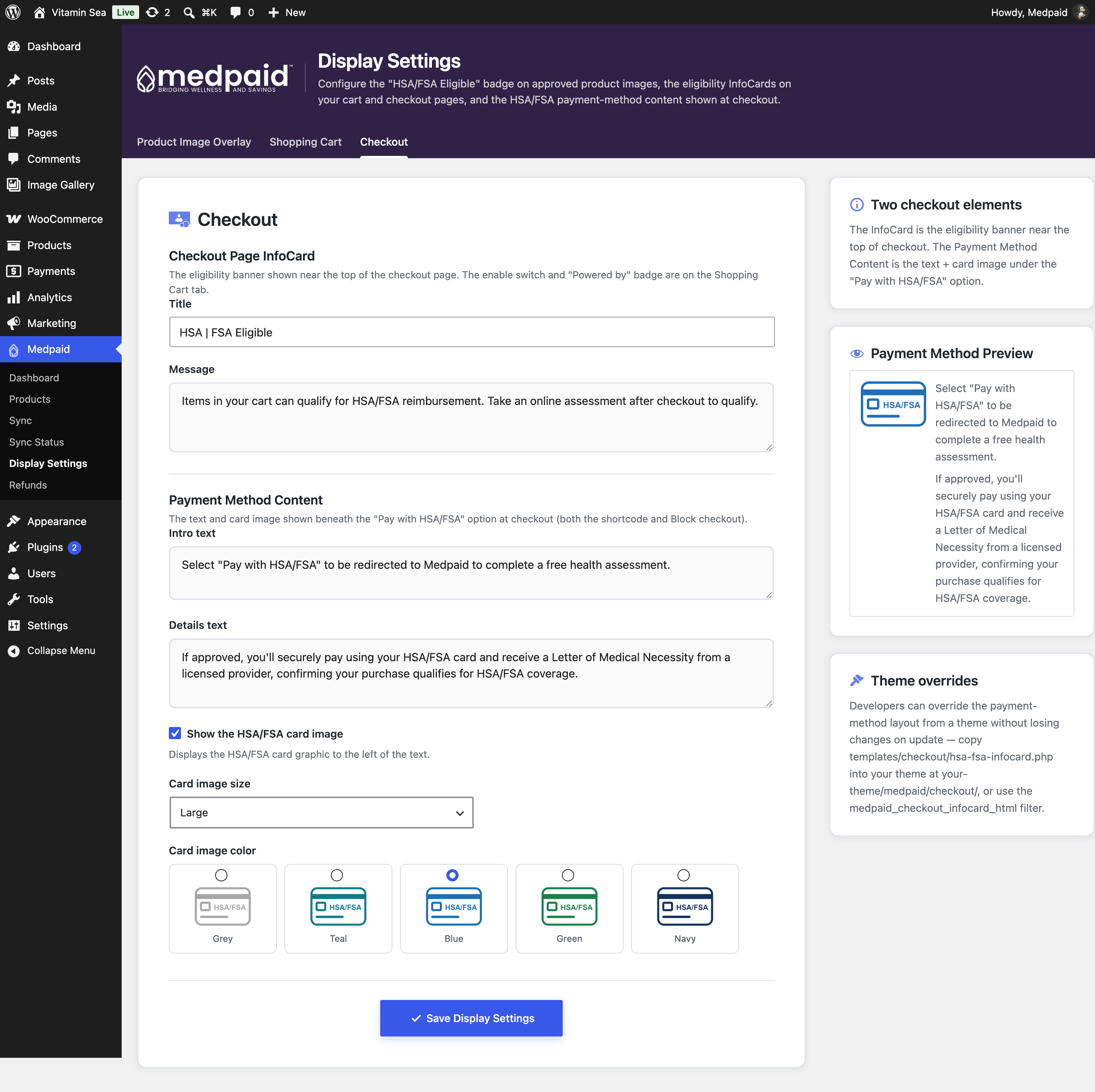
Medpaid → Display Settings controls what customers see before they reach the payment step. It has three tabs. Every setting is optional — the defaults work without changes — and each tab is saved with Save Display Settings.
Product Image Overlay
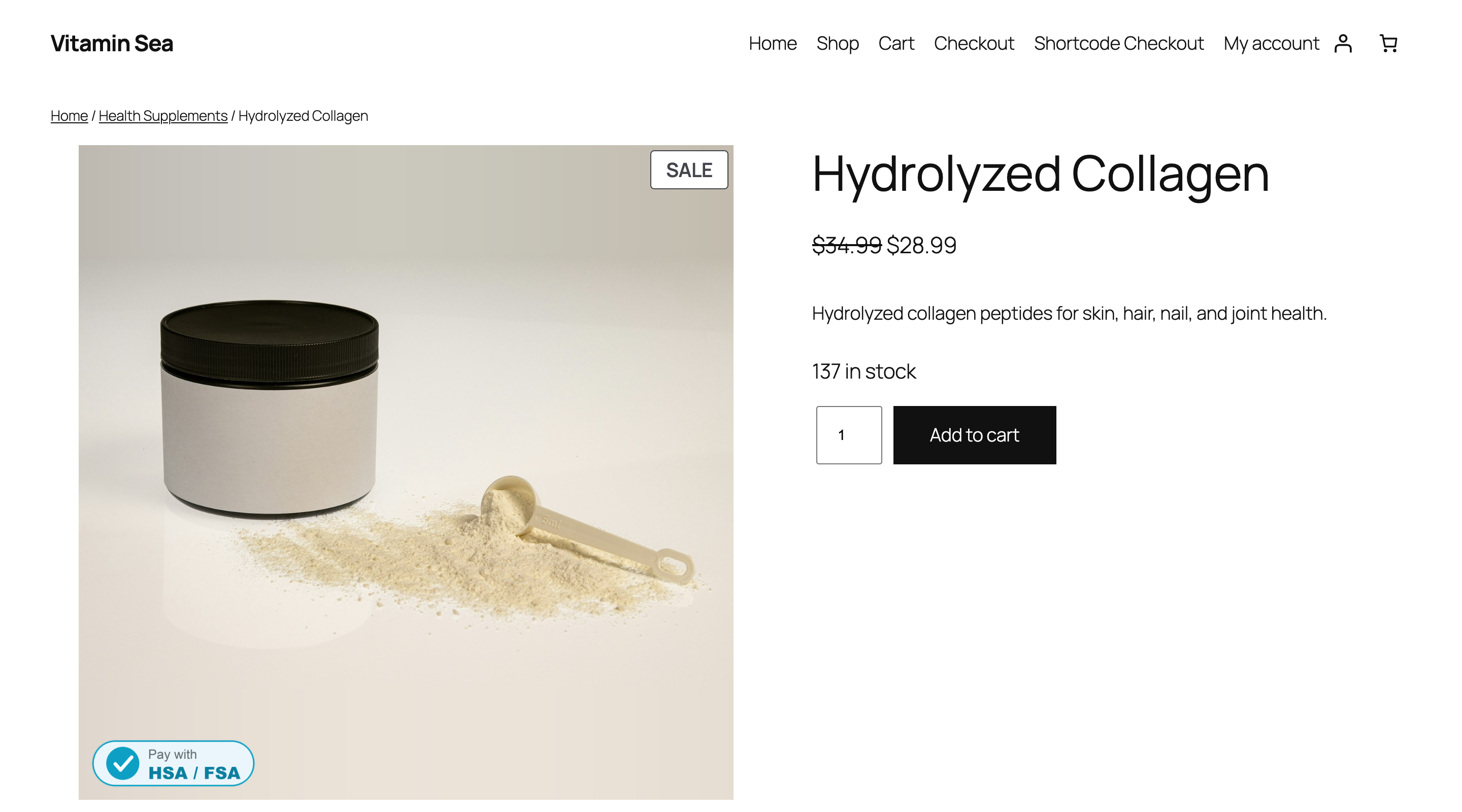
Adds an "HSA/FSA Eligible" badge to the images of products that have passed review — in shop and category grids, search results, related products, and the single product page. Choose a text pill or one of the supplied icon images, then set the corner and size. A separate Cart & Mini-Cart Badge option puts a compact badge on cart thumbnails.
Shopping Cart
Enable HSA/FSA Eligibility InfoCards shows an informational banner on the cart and checkout pages when the cart contains products that have passed review. Edit the cart InfoCard's title and message here, and choose whether to show a "Powered by Medpaid" badge.
Checkout
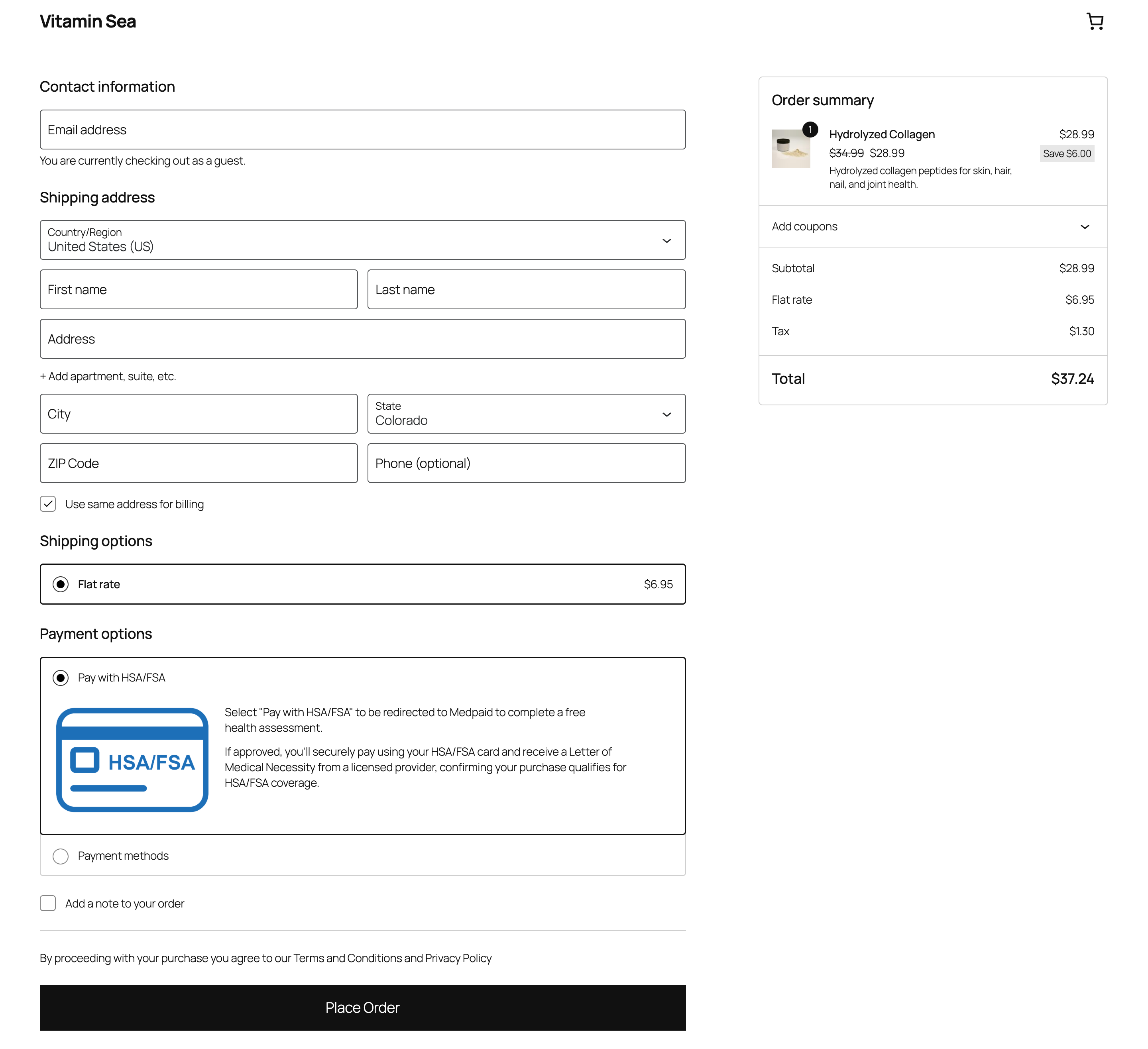
Edit the checkout InfoCard's title and message, and the Payment Method Content — the intro text, details text, and HSA/FSA card image (size and color) shown beneath the Pay with HSA/FSA option. A live preview on the right shows the result.
Read the default wording before you go live
The InfoCards and payment-method text ship with default wording. Read each message and edit it so it matches what your customer actually does at your checkout. Describe products as HSA/FSA eligible, and avoid wording that promises reimbursement — the final decision rests with the customer's HSA/FSA provider.
For developers
The payment-method layout can be overridden from a theme without losing changes on update: copy templates/checkout/hsa-fsa-infocard.php into your-theme/medpaid/checkout/, or filter the markup with medpaid_checkout_infocard_html.
10Go live and verify checkout
Once products have passed review and the gateway is enabled, the HSA/FSA option is live. This is the customer flow to expect — and to verify with a test order:
- The option appears at checkout
When the cart contains a product that has passed review, the customer sees Pay with HSA/FSA among the payment options — in both the classic checkout and the Cart & Checkout Blocks. A cart with no reviewed products does not show the option.
- Assessment and payment
Choosing it and placing the order redirects the customer to the Medpaid portal to complete the health assessment and pay with their HSA/FSA card.
- Return and confirmation
After payment, the customer returns to your store's Order Received page. The plugin confirms the payment with Medpaid server-to-server, then marks the order paid and moves it to processing or completed.
If a card is declined
The customer is returned to your store with an error notice and can retry or choose another payment method. The order stays unpaid in your store until Medpaid confirms the payment, so a declined attempt never marks it paid.
Verify
Place a test order on a product that has passed review. Confirm the redirect to Medpaid, the return to your Order Received page, and that the order shows as paid under WooCommerce → Orders.
11Refund an HSA/FSA order
Refund a Medpaid order from the WooCommerce order screen, the same way you refund any other order. Medpaid reviews every refund before the funds move, so the request is queued rather than settled on the spot.
- Start the refund in WooCommerce
Go to WooCommerce → Orders, open the order, select Refund, enter the items or amount, and choose the option to refund through Medpaid. Refunds through Medpaid are offered on orders that were paid with the Medpaid gateway.
- Medpaid reviews the request
The plugin sends the request to Medpaid and checks for the outcome automatically — often at first, then less frequently.
- The outcome is recorded
When a refund is approved, it is recorded on the order automatically, exactly as requested, and the order totals update. When a refund is declined, no money moves and nothing is recorded on the order; the reason Medpaid gave is shown and added to the order notes.
Medpaid → Refunds lists every request and where it stands. Refund Requests holds requests that are in progress or need your attention; Refund History holds resolved ones. Select Check now on a request to ask Medpaid immediately instead of waiting for the next scheduled check.
If a refund stalls
Automatic checking stops after seven days and the refund is flagged for review on the Refund Requests tab. If a declined or stalled refund leaves the customer owed money, refund them manually from the order screen, or contact Medpaid Support.
12Frequently asked questions
Does Medpaid work with the WooCommerce Cart & Checkout Blocks?
Yes. The plugin registers a Block-checkout payment method in addition to the classic shortcode checkout, so it works on both.
Is it compatible with High-Performance Order Storage (HPOS)?
Yes. Medpaid declares HPOS compatibility and uses the WooCommerce CRUD API for all order reads and writes.
Does this gateway add PCI scope to my store?
No. Customers enter their HSA/FSA card details on Medpaid's hosted payment page, not on your site — card data never touches your server.
Why don't I see Pay with HSA/FSA at checkout?
The option is offered only when three things are true: the gateway is enabled and shows Active (Section 6), valid API keys are saved (Section 5), and the cart contains at least one product that has passed review (Section 8).
What happens if a customer's HSA/FSA card is declined?
The customer returns to your store with an error notice and can retry or choose another payment method. The order stays unpaid until Medpaid confirms the payment.
Can I refund an HSA/FSA payment from inside WooCommerce?
Yes. Refund the order from the WooCommerce order screen. Medpaid reviews each refund, so the WooCommerce refund record is created once Medpaid approves it. Requests are listed under Medpaid → Refunds (Section 11).
Can I change the HSA/FSA text and image shown at checkout?
Yes. Edit the intro text, details text, and card image under Medpaid → Display Settings → Checkout (Section 9).
What happens to my data if I deactivate or delete the plugin?
Deactivating stops the plugin's scheduled jobs and leaves everything else in place, so reactivating restores your setup. Deleting the plugin removes its settings, API credentials, product-eligibility data, and logs. Medpaid's references on your existing WooCommerce orders are kept, because they are your record of payments that happened.
13Support
Questions during setup? Reply to any onboarding email — a real person on the team reads every one — or contact Medpaid Support at support@medpaid.com.
Medpaid provides HSA/FSA eligibility verification and post-purchase reimbursement facilitation. Medpaid does not guarantee reimbursement; the final reimbursement decision rests with the consumer's HSA/FSA provider. Use of the Medpaid platform is subject to the Terms of Service and Privacy Policy at medpaid.com.